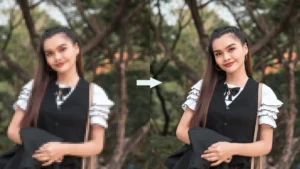

Have you ever captured the perfect moment, only to find your photo came out blurry and unusable? You’re not alone. Whether it’s camera shake, poor lighting, or motion blur, thousands of people struggle with low-quality images daily. The frustration of deleting precious memories because they’re out of focus is real—but that’s where AI-powered photo enhancers change the game entirely.
Artificial intelligence has revolutionized photo editing. Today, you don’t need Photoshop skills or expensive software to restore a blurry image. With just one click, modern AI photo enhancement tools can transform your fuzzy snapshots into crystal-clear, publication-ready images. These intelligent systems analyze pixels, restore lost details, and enhance clarity in seconds—automatically.
Let’s explore how AI photo enhancers work and why they’re the easiest solution for fixing blurry photos in 2025.
What Are AI-Powered Photo Enhancers?
AI photo enhancers are intelligent software tools designed to improve image quality automatically. They use deep learning and neural networks trained on millions of images to understand and fix common photo problems. Unlike traditional photo editors where you manually adjust sliders, AI enhancement tools analyze your image and determine the best corrections needed.
These tools specifically address blur issues caused by various factors. Motion blur happens when your camera moves during exposure or your subject moves too quickly. Focus blur occurs when your camera focuses on the wrong part of the scene. Low-light blur appears in photos taken in dim conditions where the camera’s sensor struggles to capture sharp details. Each type of blur requires different correction techniques, and sophisticated AI models can identify and fix each one intelligently.
What makes AI photo enhancement revolutionary is the speed and accuracy. Processing that would take professionals hours in Photoshop now happens in seconds. The AI doesn’t just sharpen edges—it reconstructs missing detail information, enhances textures, and restores clarity while maintaining natural-looking results.
Most importantly, these tools are accessible to everyone. No technical knowledge required. No expensive subscriptions necessary for basic use. Upload your blurry image, click enhance, and download your improved photo. That’s the entire workflow.
Key Features & Benefits of AI Photo Enhancement
Intelligent Blur Detection and Removal
Modern AI photo enhancers recognize multiple types of blur and apply specialized corrections for each. Some tools offer different enhancement models—standard mode for general photos, motion blur mode for action shots, and lens blur mode for out-of-focus images. This specialized approach delivers more natural results than applying a one-size-fits-all sharpening filter.
One-Click Automatic Enhancement
These tools require zero user input. Upload your image and the AI handles everything. Unlike Photoshop where you adjust sharpness, contrast, and saturation manually, AI enhancement tools make intelligent decisions automatically. This democratizes photo editing for people without technical skills.
High-Resolution Output (4K, 8K, and Beyond)
Most AI photo enhancers upscale your images while fixing blur. You can transform a low-resolution smartphone photo into a 4K-quality image suitable for printing. Some advanced tools even support 8K, 16K, or higher resolution outputs. This is invaluable for photographers, e-commerce sellers, and content creators.
Batch Processing Capabilities
Many tools allow processing multiple images simultaneously. Instead of enhancing photos one-by-one, you upload dozens at once. This feature saves hours of work for e-commerce businesses, real estate agents, and photographers with large portfolios.
No Downloads or Installation Required
These are cloud-based tools accessed through your web browser. No software installation, no compatibility issues, no storage space needed on your computer. Open your browser, upload your photo, enhance it, and download the result within minutes.
Free Access with Optional Premium Features
Most platforms offer completely free enhancement for standard use. You can sharpen images, fix blur, and improve clarity without paying a single dollar. Some offer daily credits (like 5 free downloads daily), while others provide unlimited free access. Premium plans unlock advanced features or batch processing.
Text and Detail Enhancement
AI photo enhancers excel at sharpening text within images. If you have a screenshot with blurry text, a photo of a document, or a sign with unclear words, these tools make the text crisp and readable. They also restore fine details in fur, feathers, skin textures, and architectural elements.
Noise Reduction and Grain Removal
Beyond fixing blur, these tools eliminate image noise from high-ISO photography, compress artifacts, and remove grain from old photos. The result is clean, smooth, professional-looking images.
How AI Transforms Blurry Photos: The Technology Behind the Magic
AI photo enhancement uses a technology called super-resolution. This isn’t just sharpening—it’s intelligent reconstruction. Here’s how it works in practice:
Your blurry image contains less information than a sharp image. Traditional sharpening just emphasizes existing edges. AI enhancement actually fills in missing details. The neural networks reconstruct what the scene probably looked like when sharp by analyzing similar high-resolution reference images from its training data.
Deep learning models are trained on millions of image pairs—blurry and sharp versions of the same scene. The AI learns patterns in how details appear in sharp images and applies these patterns to reconstruct your photo. It understands that if it sees a human eye, the iris should have fine striations and light reflections. If it detects fabric, the weave pattern should be visible.
The result feels natural because it’s based on actual photographic reality, not artificial processing. There’s no halo effect around edges (a common problem with older sharpening techniques). There are no plastic-looking over-processed results. The enhanced photo maintains the original lighting, colors, and composition while bringing out lost details.
AI Photo Enhancers vs. Traditional Methods: Which Is Better?
AI Enhancement vs. Photoshop Manual Sharpening
Photoshop: Requires hours of learning, subscription costs ($55/month), and manual adjustment of multiple parameters. Results depend entirely on user skill.
AI Enhancement: Free or low-cost, takes 30 seconds, produces professional-grade results automatically. Learning curve is essentially zero.
Winner: AI enhancement for speed, cost, and consistency. Photoshop remains superior for advanced creative editing alongside enhancement.
AI Upscaling vs. Simple Resizing
Resizing a 480p photo to 4K just stretches pixels—making it blurrier. AI upscaling intelligently recreates detail information at higher resolution, making the image sharper and clearer. There’s literally no comparison.
AI Enhancement vs. Older Unsharp Masking Filters
Old-school sharpening filters brighten light pixels and darken dark pixels along edges, creating an artificial sharpening effect. Zoom in and the image remains blurry. AI enhancement actually reconstructs detail information, so the photo remains sharp at any zoom level.
AI Enhancement vs. Manual Retouching
A professional retoucher might spend 30 minutes on a single photo. An AI tool does it in 30 seconds. For batch jobs, there’s no contest. For artistic vision and creative control, manual retouching still wins.
| Factor | AI Enhancement | Manual Photoshop | Old Sharpening | AI vs Manual |
|---|---|---|---|---|
| Time Required | 30 seconds | 30 minutes | 5 minutes | AI wins |
| Cost | Free-$20 | $55/month | Free filter | AI wins |
| Ease of Use | One-click | Steep learning curve | Simple | AI wins |
| Results Quality | Professional | Professional | Artificial looking | Tie |
| Batch Processing | Yes | No | No | AI wins |
| Creative Control | None | Complete | Limited | Manual wins |
Top AI Photo Enhancers Compared (2025)
UnblurImage AI
UnblurImage AI specializes in removing blur with remarkable accuracy. It supports multiple upscale levels (2x, 4x) and handles images up to 4,000×4,000 pixels without registration. The tool offers batch processing to unblur multiple photos simultaneously. You can sharpen images, remove motion blur, and enhance clarity entirely free. The platform is completely web-based with no watermarks on results.
Best for: Social media creators, photographers wanting quick blur fixes, batch processing jobs.
Pros: Free, no sign-up, multiple upscale options, no watermarks
Cons: Limited to 4K resolution output
ImgUpscaler AI
This tool pushes resolution boundaries, supporting upscaling to 16K—far beyond standard 4K enhancers. It rebuilds textures and details using deep AI enhancement rather than stretching pixels. The platform intelligently fills in missing pixels and refines color gradients. You get crystal-clear results suitable for large-format printing, high-resolution displays, and professional use. Batch processing of up to 3 images simultaneously is available.
Best for: Professional photographers, large-format printing, e-commerce product images, design work
Pros: Ultra-high resolution support (16K), superior texture reconstruction, batch processing, completely free
Cons: Processing multiple images means waiting for sequential completion
PicWish
PicWish excels at portrait enhancement with its specialized AI face model. Beyond general unblurring, it offers portrait-specific tools for making faces crystal clear. You get 5 free daily downloads, and the mobile apps for iOS and Android provide on-the-go enhancement. The interface is incredibly user-friendly, making it perfect for non-technical users.
Best for: Portrait photographers, selfie enhancement, mobile users, old photo restoration
Pros: Face-focused enhancement, free daily credits, mobile apps, intuitive interface
Cons: Limited to 5 free downloads daily (paid plans required for more)
Canva Photo Enhancer
Canva integrates photo enhancement within their full design platform. You can enhance images and immediately use them in your designs. It supports upscaling up to 8x resolution. The tool features sharpness sliders for manual fine-tuning and integrates seamlessly with Canva’s design templates, making it perfect for content creators.
Best for: Content creators, social media marketers, designers wanting integrated enhancement
Pros: Integrated with design tools, 8x upscaling, manual control options
Cons: Requires Canva account, paid subscription for best features
Topaz Labs Unblur
Topaz Labs provides professional-grade enhancement trusted by photographers, archivists, and museums. Advanced face recovery technology (with creative and realistic modes) restores facial details with remarkable precision. The tool handles motion blur, focus issues, and soft focus problems. Batch processing in the desktop app saves time on large projects. Free browser-based tool available, with advanced features in their premium software.
Best for: Professional photographers, archivists, museums, serious enthusiasts
Pros: Professional-grade results, advanced face recovery, trusted by institutions, desktop batch processing
Cons: Desktop software requires purchase (browser version is free but limited)
Fotor Image Unblur
Fotor offers free blur removal across web and mobile platforms. It excels at portrait enhancement with advanced face retouch features. The tool removes blur from faces, improves clarity, and enhances sharpness. Mobile apps for iPhone and Android provide instant enhancement anywhere. You can further fine-tune results with additional tools.
Best for: Mobile users, portrait photographers, casual enhancement needs
Pros: Free access, strong mobile apps, portrait-focused features, cross-platform
Cons: Advanced features require paid subscription
VanceAI Image Sharpener
VanceAI stands out with 4 specialized AI models: Standard for general photos, Lens Blur mode for focus issues, Motion Blur mode for camera shake, and Soft Blur mode for general softness. This specialization allows more targeted, effective correction. You get 3 free credits monthly. The tool is available both online and as downloadable software for Windows.
Best for: Photographers wanting specialized blur models, users with specific blur types, batch processing via desktop
Pros: 4 specialized enhancement modes, desktop and web versions, affordable pricing
Cons: Free tier limited to 3 credits monthly
How to Use AI Photo Enhancers: Step-by-Step Guide
Basic Process (Works for Most Tools)
Step 1: Choose Your Tool — Select from the options above based on your needs. For beginners, UnblurImage AI or ImgUpscaler offer the simplest interface.
Step 2: Upload Your Image — Click the upload button or drag-and-drop your blurry photo. Most tools support JPG, PNG, WEBP, and HEIC formats.
Step 3: Select Enhancement Options — If the tool offers choices (like enhancement strength or blur type), select your preferences. Most users just proceed with default settings.
Step 4: Let AI Process — Click the enhance, sharpen, or upscale button. Processing typically takes 10-60 seconds depending on image size and tool.
Step 5: Download Your Result — Once complete, download the enhanced image. Most tools provide download buttons or save to cloud storage.
Step 6: Compare Before and After — Many tools show side-by-side comparisons. Review quality and adjust settings if needed.
Pro Tips for Best Results
Upload high-quality source images — While AI can improve blurry photos, starting with the best available version of your image helps. If you have both JPG and RAW, use RAW.
Try multiple tools — Different algorithms produce slightly different results. If one tool doesn’t satisfy you, test another. Most offer free trials.
Batch process similar images — If you have 50 similar photos (like from a photo shoot), batch processing saves hours of individual uploads.
Use appropriate upscaling — Don’t upscale a tiny 100×100 pixel image to 4K expecting perfect results. Start with at least 800×600 resolution.
Consider your output use — Printing? Enhance to 300 DPI. Social media? 72 DPI is sufficient. Web use? Compress after enhancement for faster loading.
Experiment with different models — Tools offering multiple enhancement modes (like VanceAI) may produce better results with the right mode selected.
Real-World Use Cases: Where AI Photo Enhancement Shines
E-commerce Product Photography
Fuzzy product images tank conversion rates. Clear, sharp product photos increase sales significantly. AI enhancers instantly improve blurry catalog photos without professional photography retakes.
Social Media Content Creation
Influencers and content creators batch-process photos, enhance them, and post within minutes. The professional-looking results boost engagement without hours of editing.
Old Photo Restoration
Family treasures often arrive blurry, faded, or damaged. AI enhancement revives these memories, making them sharp, vibrant, and suitable for printing or archival.
Real Estate Marketing
Properties shown in blurry, low-quality photos sell slower. Real estate agents use AI enhancement to make listings shine with crisp, clear images of every room and angle.
Journalism and Archival Work
Museums and institutions use AI enhancement to restore historical photographs. Clarity that was lost to time reappears, making rare images suitable for publication and preservation.
Photography Portfolios
Photographers with a shot that’s almost perfect but slightly soft can rescue it with AI enhancement. No need to retake the photo.
Screenshot and Document Enhancement
Blurry text in screenshots or photos of documents becomes readable again. Graphics are clarified for presentation use.
Frequently Asked Questions
Q: Is AI photo enhancement free?
A: Most tools offer free enhancement for basic use. UnblurImage AI, ImgUpscaler, and Fotor are completely free. Tools like PicWish offer 5 free daily uses. VanceAI provides 3 free credits monthly. Premium plans with unlimited use typically cost $3-20 monthly.
Q: Will AI enhancement make my blurry photo perfect?
A: AI works best on moderately blurry photos. Heavily blurred images with extreme motion blur won’t become perfectly sharp, but they’ll improve noticeably. The technology reconstructs detail, not invents it from nothing. Realistic expectations: 30-50% blur improvement in severely blurry photos, 70-90% improvement in moderately blurry photos.
Q: Is my photo data private when I upload it?
A: Reputable tools like Topaz Labs, ImgUpscaler, and Fotor maintain privacy policies. Read the terms before uploading sensitive images. Most delete uploaded files after processing. For maximum privacy, use desktop software like Topaz Photo or Luminar Neo that process locally on your computer.
Q: Can AI enhance ancient or severely damaged photos?
A: Yes, many tools specialize in old photo restoration. They remove dust, scratches, yellowing, fading, and blur. Fotor, ImgUpscaler, and Topaz Labs specifically market old photo restoration as a feature. Results vary based on damage severity—severely damaged photos improve significantly but may not reach perfect clarity.
Q: How does upscaling work? Can I upscale a tiny photo?
A: AI upscaling intelligently recreates detail at higher resolution. A 640×480 photo can be upscaled to 2560×1920, but quality depends on original resolution. Upscaling extreme resolutions (like 100×100 to 4K) produces acceptable but not professional results. Best results: upscale by 2-4x maximum.
Q: Which tool is best for batch processing?
A: ImgUpscaler (up to 3 simultaneous), UnblurImage AI (supports batch), and VanceAI desktop version all handle batch processing. For processing 50+ images, desktop software is faster than web tools.
Q: Can AI enhancement fix photos with JPEG compression artifacts?
A: Yes. AI tools denoise and remove compression artifacts. Heavily compressed JPEGs show visible improvement. The enhancement smooths blocky artifacts while maintaining detail.
Q: Is there a difference between “sharpening” and “unblurring”?
A: Simple sharpening emphasizes edges artificially. Unblurring reconstructs lost detail information. AI unblurring is more sophisticated and produces more natural results than sharpening filters.
Q: Do I need Photoshop skill to use these tools?
A: No. All recommended tools are one-click solutions. You upload, click enhance, and download. Zero technical knowledge required.
Q: What file formats do these tools support?
A: Most support JPG, PNG, WEBP, and HEIC. Some support BMP, TIFF, and PDF. Check individual tool specifications.
Pros & Cons of Popular AI Photo Enhancers
Overall Advantages
✓ Incredible Speed — 30 seconds vs. 30 minutes with Photoshop
✓ No Technical Knowledge Required — One-click enhancement for everyone
✓ Affordable or Free — Most offer free basic use
✓ Professional Results — Output quality rivals hired professionals
✓ Batch Processing — Enhance 50+ photos simultaneously
✓ Cloud-Based Access — Work from any device, anywhere
✓ Multiple Specializations — Tools for portraits, documents, old photos, products
✓ Continuous Improvement — AI models update constantly with better algorithms
Overall Limitations
✗ Cannot Create Detail from Nothing — Cannot fix extremely blurry images perfectly
✗ Limited Creative Control — No artistic adjustment options (intentional limitation)
✗ Internet Dependency — Requires stable internet connection
✗ Upload Size Limits — Most cap at 10-25MB or 4000×4000 pixels (exceptions exist)
✗ Privacy Concerns — Cloud processing means uploading to servers (though most delete immediately)
✗ Output Format Limitations — Some tools output only JPG or PNG, not RAW
✗ Specialized Needs Still Need Professionals — Artistic retouching or extreme restoration needs humans
The Future of AI Photo Enhancement: What’s Coming in 2025-2026
AI photo enhancement technology evolves rapidly. Here’s what’s emerging:
Real-Time Enhancement on Mobile — Phones will enhance photos as you take them, so you never capture a blurry shot.
Video Enhancement — Current tools enhance still photos. Video blur fixing is coming to consumer tools.
Contextual Awareness — Future AI will understand scene context better. It’ll know a night photo should stay dark while remaining sharp, rather than brightening everything.
Selective Enhancement — Enhance just one person’s face while keeping backgrounds as-is. Already appearing in premium tools.
AI Outpainting — Extend photos beyond original boundaries. “Unblur and expand” coming to many platforms.
Offline Processing — Privacy-conscious users will see more desktop and offline tools that process locally.
Subscription Minimization — Pressure from users and competitors pushes tools toward free models.
Conclusion
AI-powered photo enhancers have democratized professional-quality image enhancement. You no longer need expensive software, technical skills, or hours of work to transform blurry photos into crystal-clear images. These intelligent tools make excellence accessible to everyone from casual smartphone photographers to professional content creators.
Whether you’re fixing a vacation photo, restoring a family heirloom, improving product images for e-commerce, or enhancing screenshots, an AI photo enhancer can complete the job in seconds. Most tools offer completely free access, making experimentation risk-free.
The technology continues improving. AI models grow smarter, processing speeds accelerate, and features expand. Yet the core promise remains: upload a blurry image, click enhance, download a sharp result.
Ready to rescue your blurry photos? Pick one of the tools above, upload your image, and experience the magic of AI enhancement yourself. Your photo memories—and your productivity—will thank you.