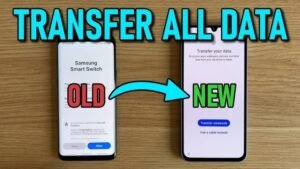

Transfer Data: The Complete Guide to Moving Files Safely and Quickly
In today’s digital world, knowing how to transfer data is an essential skill. Whether you’re switching to a new smartphone, moving files to a new computer, backing up important documents, or sharing photos with family, choosing the right data transfer method can save time and protect your valuable information.
The good news is that transferring data has become easier than ever. Modern devices offer wireless options, cloud storage, USB transfers, and specialized migration tools that make the process fast and secure. This guide explains everything you need to know about transferring data efficiently.
What Is Data Transfer?
Data transfer is the process of moving digital information from one device, storage location, or network to another. This information may include:
- Photos and videos
- Contacts
- Documents
- Apps
- Music
- Messages
- System settings
- Backups
Data can be transferred between smartphones, tablets, laptops, desktop computers, external hard drives, USB flash drives, and cloud storage platforms.
Why Is Data Transfer Important?
Transferring data ensures you don’t lose important files when upgrading devices or creating backups.
Some common reasons include:
- Upgrading to a new smartphone
- Replacing an old computer
- Creating secure backups
- Sharing large files
- Recovering information after device damage
- Freeing storage space
A reliable transfer process helps reduce the risk of data loss while keeping your information organized.
Best Ways to Transfer Data
1. Transfer Data Using a USB Cable
Using a USB cable remains one of the fastest and most reliable methods.
Benefits include:
- High transfer speed
- No internet required
- Secure direct connection
- Ideal for large files
Simply connect both devices (or connect your device to a computer), choose File Transfer mode if prompted, and copy the desired files.
2. Wireless Data Transfer
Wireless technology allows devices to communicate without cables.
Popular wireless options include:
- Wi-Fi Direct
- Bluetooth
- Local wireless sharing features
Wireless transfers work well for everyday file sharing, especially when both devices are nearby.
3. Cloud Storage Services
Cloud storage keeps your files online so they can be accessed from multiple devices.
Advantages include:
- Automatic backup
- Access from anywhere
- Easy file sharing
- Device synchronization
Cloud storage is especially useful when switching devices because your files remain available after signing into your account.
4. Manufacturer Migration Tools
Many smartphone manufacturers provide built-in migration tools that transfer nearly everything automatically.
These tools can often move:
- Contacts
- Photos
- Videos
- Messages
- Apps
- Settings
- Call history
Following the on-screen setup instructions usually completes the process within minutes.
How to Transfer Data to a New Phone
Moving to a new phone is one of the most common reasons people transfer data.
A typical process includes:
- Charge both devices.
- Connect them using a cable or wireless method.
- Choose the data you want to transfer.
- Wait for the migration to complete.
- Verify that your contacts, photos, and important files have been copied.
Before resetting your old phone, always confirm that everything has transferred successfully.
How to Transfer Data Between Computers
If you’re replacing a computer, there are several effective methods.
External Storage
Copy files to:
- External hard drives
- SSDs
- USB flash drives
Then move them to your new computer.
Network Transfer
If both computers are connected to the same network, shared folders can simplify file transfers without requiring external storage.
Cloud Backup
Upload files to cloud storage and download them onto the new computer whenever needed.
Tips for Safe Data Transfer
Following a few best practices helps protect your information.
Create a Backup First
Always back up important files before beginning any transfer. This provides a recovery option if something goes wrong.
Keep Devices Charged
A device shutting down during transfer may interrupt the process or leave incomplete files.
Use Trusted Connections
Avoid transferring sensitive information over unsecured public Wi-Fi networks whenever possible.
Verify Your Files
After the transfer finishes, check that:
- Photos open correctly
- Documents are complete
- Contacts appear properly
- Videos play normally
Taking a few minutes to verify everything can prevent future frustration.
Common Data Transfer Problems
Occasionally, users encounter issues during transfers.
Some common problems include:
Slow Transfer Speed
Possible causes:
- Large file sizes
- Slow USB ports
- Weak Wi-Fi connection
- Limited device storage
Transfer Interrupted
This may happen because of:
- Low battery
- Cable disconnection
- Software errors
- Network interruptions
Restarting the transfer after checking the connection often resolves the issue.
Missing Files
If some files don’t appear on the new device, check whether they were excluded from the transfer or stored in a different folder.
Best Practices for Faster Data Transfer
To improve transfer performance:
- Remove unnecessary files before transferring.
- Close unused applications.
- Use high-speed USB cables when available.
- Keep software updated.
- Ensure sufficient storage space on the destination device.
These simple steps can significantly reduce transfer time.
Conclusion
Learning how to transfer data safely is an important digital skill that helps protect your files while making device upgrades simple and stress-free. Whether you use a USB cable, wireless connection, cloud storage, or built-in migration tools, choosing the right method depends on your devices and the amount of data you need to move.
App
By creating backups, verifying transferred files, and following secure practices, you can complete data transfers confidently without risking valuable information. With the right approach, moving your digital life from one device to another becomes quick, reliable, and hassle-free.