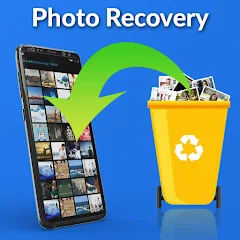

Losing photos can feel devastating. Whether it’s vacation snapshots, family moments, or important documents captured on your phone, accidental deletion happens to everyone. The good news is that in many cases, recovery is possible if you act quickly and use the right approaches.
This comprehensive guide explores effective ways to recover deleted photos on both Android and iOS devices. We’ll cover built-in features, popular recovery options, how these tools function, their pros and cons, and most importantly, how to prevent future losses. Our focus is on practical, safe advice that prioritizes your data security and success rate.
What Are Deleted Photo Recovery Apps?
Deleted photo recovery apps and tools are designed to help retrieve images and videos that have been removed from your device’s storage. These aren’t magic solutions, but they use smart scanning techniques to locate remnants of files that haven’t been fully overwritten.
On mobile devices, when you delete a photo, the operating system typically marks the space as available for new data rather than immediately erasing the file content. Recovery tools scan for these remnants using file signatures (like JPEG headers) and attempt to reconstruct the images.
For Android, options often include apps that scan internal storage or SD cards. iOS is more restricted due to its closed ecosystem, so recovery frequently relies on backups, iCloud, or computer-based software connected via USB. Understanding these differences helps set realistic expectations.
Recovery success depends on several factors: how recently the deletion occurred, whether new data has overwritten the space, and the specific device and storage type.
Key Features of Effective Deleted Photo Recovery Tools
Good recovery solutions share several important capabilities that make the process smoother for everyday users:
- Quick and Deep Scan Options: A fast scan checks recent deletions and cache areas, while a deep scan examines the entire storage for older or fragmented files. This balance saves time when you need quick results.
- Preview Functionality: Before recovering, you can view thumbnails or full previews to select only the needed photos. This avoids cluttering your device with unwanted files and helps verify quality.
- Support for Multiple File Types: Beyond standard photos (JPG, PNG), effective tools handle HEIC (common on iPhones), videos, and sometimes RAW files from cameras.
- User-Friendly Interface: Clear steps, progress indicators, and minimal technical jargon make them accessible for beginners who aren’t tech experts.
- Backup and Cloud Integration: Many connect with Google Photos, iCloud, or local backups, allowing restoration from secondary sources rather than just device storage.
- Safety and Permissions: Reputable tools request only necessary access and don’t require sharing sensitive data unnecessarily. Always review permissions carefully.
These features turn a stressful situation into a manageable one, especially when combined with built-in device options.
How Deleted Photo Recovery Works on Android and iOS
The recovery process varies between platforms but follows similar principles.
On Android:
- Check Built-in Trash: Many gallery apps and Google Photos have a “Trash” or “Recently Deleted” folder that holds items for 30-60 days.
- Use Recovery Apps: Install a trusted app from the Google Play Store. Grant storage permissions. Run a scan (basic or full). Preview results and recover selected files to a safe folder.
- SD Card Recovery: If photos were on an SD card, remove it and use a computer with dedicated software for better results.
- Rooted Devices: Advanced scans may require root access for deeper system-level recovery, though this carries risks and isn’t recommended for most users.
On iOS:
iOS security makes direct scanning harder. Common steps include:
- Recently Deleted Album: Open the Photos app, go to Albums > Recently Deleted. Items stay here for up to 30 days. Select and recover easily.
- iCloud or Computer Backups: Restore from iCloud backup or connect to a Mac/PC with recovery software that accesses backups without overwriting the entire device.
- Third-Party Assistance: Some desktop programs can scan connected iPhones for recoverable data, focusing on cache or unallocated space.
In both cases, stop using the device for new photos or apps immediately after noticing the loss. This minimizes overwriting, which is the biggest barrier to successful recovery.
Advantages and Limitations
Advantages:
- Peace of Mind: Recovering even some photos can preserve irreplaceable memories.
- Convenience: Many processes work directly from your phone without complex setups.
- Cost-Effective Options: Free tiers or built-in tools handle many common scenarios.
- Learning Opportunity: Dealing with loss encourages better backup habits long-term.
Limitations:
- Overwriting Risk: Once new data fills the space, full recovery becomes unlikely or impossible.
- iOS Restrictions: Apple’s sandboxing limits what apps can access, often making complete recovery dependent on backups.
- Variable Success Rates: Older deletions or heavily used storage yield poorer results. Not every photo will return in perfect condition.
- Potential for Incomplete Files: Fragmented images may show artifacts or only partial recovery.
- Security Concerns: Some lesser-known apps may request excessive permissions or deliver unreliable scans. Stick to well-reviewed options from official stores.
Being honest about these limitations helps you approach recovery realistically and avoid frustration.
Best Practices and Tips for Photo Recovery
To maximize your chances:
- Act Fast: The sooner you attempt recovery, the better.
- Enable Backups Immediately: Use Google Photos (Android) or iCloud Photos (iOS) with automatic backups.
- Use Airplane Mode: Temporarily disable internet and avoid new writes to storage.
- Organize Storage: Keep photos on SD cards where possible for easier external recovery.
- Test Small Areas: Scan specific folders first to gauge effectiveness.
- Combine Methods: Check cloud services, device trash, and apps sequentially.
- Document Your Device: Note your phone model, Android/iOS version, and storage details for tailored advice if seeking professional help.
For example, if you deleted family reunion photos yesterday on your Samsung Galaxy, first check Google Photos Trash, then try a reputable scanner. Success stories often come from quick action plus layered backups.
Common Mistakes to Avoid
Many people reduce their recovery odds through simple errors:
- Continuing to take new photos or install apps right after deletion.
- Using untrusted apps from outside official stores, which may contain malware.
- Ignoring built-in trash folders and jumping straight to complex tools.
- Skipping previews and recovering everything, wasting space on duplicates or junk.
- Expecting 100% recovery for files deleted months ago.
- Not backing up recovered files immediately to another location.
Avoiding these pitfalls saves time and protects your device.
Frequently Asked Questions
Can I recover permanently deleted photos on Android or iOS?
It depends on timing and overwriting. If beyond the trash period and space reused, chances drop significantly. Backups offer the best hope.
Do I need to root my Android phone for better recovery?
Rooting allows deeper scans but voids warranties, introduces security risks, and isn’t necessary for recent deletions. Most users succeed without it.
How long do deleted photos stay recoverable on iPhone?
The Recently Deleted album holds them for 30 days. After that, recovery relies on backups or advanced tools.
Are free recovery apps effective?
Free versions often provide basic scans and previews. They work well for recent deletions but may limit full recovery or file types. Paid upgrades unlock more features.
Will recovery apps steal my data?
Reputable apps from Play Store or App Store follow privacy guidelines. Always read reviews, check permissions, and avoid apps asking for unnecessary cloud uploads.
What’s the success rate for photo recovery?
It varies widely—high for recent deletions with backups (80-90%+), lower for older files without (20-50% or less). Quick action improves outcomes dramatically.
Conclusion
Recovering deleted photos on Android and iOS is often achievable with the right combination of built-in features, timely action, and reliable tools. While no method guarantees perfect results every time, understanding how deletion and recovery work empowers you to handle accidents effectively.
The real key lies in prevention: regular backups, cloud syncing, and careful storage habits ensure your memories stay safe. Start implementing these practices today to avoid future heartache.
Explore your device’s built-in options, set up automatic backups, and stay informed about data management. Your photos deserve that extra layer of protection. Get started with a quick audit of your current backup setup now.